
Installing the extension in VS Code
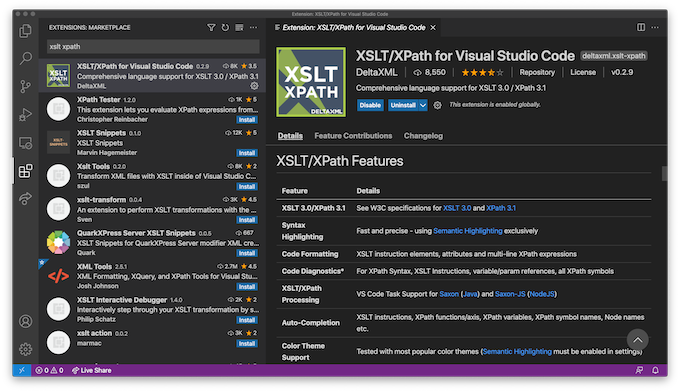
Extensions are managed in the Extensions view (⇧⌘X) of the Side Bar. Type XSLT XPath in the Extensions view search bar and, on the XSLT/XPath for Visual Studio Code entry, press the install button .
Run XSLT - Quick Start
XSLT transforms are run using Visual Studio Code Tasks. Before configuring an XSLT task you should ensure that you open a Workspace folder (⌘O) from Visual Studio Code. The configuration is saved in a tasks.json file in this workspace folder.
To create your first task, use the Run Build Task command (⇧⌘B). As there is no currently configured task, you will be prompted to configure one. You can then, select either the Saxon or Saxon-JS task.
A task will be added to the tasks.json task with default properties. To further configure the task, these properties can be changed or other properties added. Auto-completion and hints are provided to assist in the task configuration. Next time you press (⇧⌘B) your task will be run in a Task tab in the Terminal window (toggled with ⌘J).